
Object Explorer Menu extension for SSMS
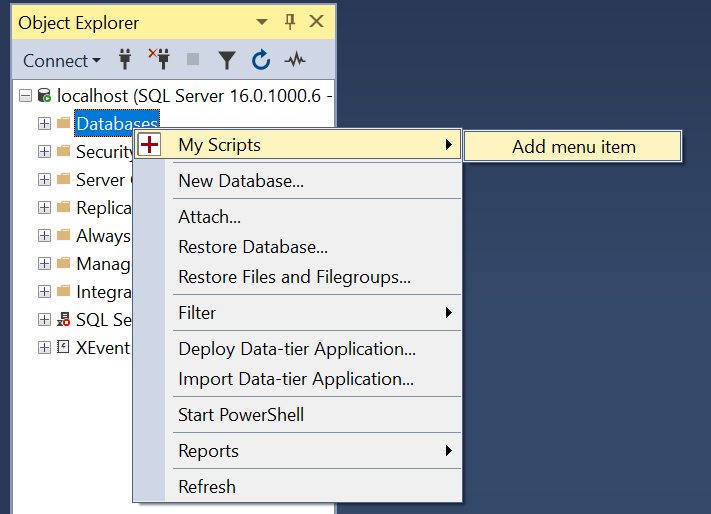
Object Explorer Menu is a free, open-source extension for SQL Server Management Studio (SSMS), developed in C#. It enables users to add custom menu items to the right-click context menu within the Object Explorer window.
These menu items can be configured to run either external T-SQL script files or inline T-SQL statements. Upon selection, the extension opens a new query window displaying the script. It also supports tag substitution within scripts and optional automatic execution, streamlining routine database tasks and enhancing productivity.
Adding own parameters to the menu items are also supported. Every menu item can have its own list of them. Their values can be enetered in a dialog before the T-SQL script’s execution.
The project homepage is https://sqlmedic.com.




- Install
- How to add menu items to the Object Explorer
- Settings
- Compatibility
- Compiling the source code
- FAQ
- Where can I get the source code for the Object Explorer Menu extension?
- How can I contribute to the project?
- Why do you only support the latest version of SSMS?
- Why was the Object Explorer Menu extension created?
- Why is the Object Explorer Menu extension free and open source?
- Why use the Object Explorer Menu extension when other extensions also allow users to create custom menu items?
- How do I uninstall the Object Explorer Menu extension?
- Credits
- Change Log
- v4.1.2 (2026-03-31)
- v4.1.1 (2026-02-28)
- v4.0 (2025-11-12)
- v3.2 (2025-07-31)
- v3.1 (2025-06-10)
- v3.0 (2025-06-08)
- v2.3 (2024-12-23)
- v2.2 (2024-11-12)
- v2.1 (2024-03-23)
- v2.0 (2024-03-21)
- v1.7 (2023-08-01)
- v1.6 (2023-07-25)
- v1.5 (2023-07-23)
- v1.4 (2023-07-22)
- v1.3 (2023-07-15)
- v1.2 (2023-07-11)
- v1.1 (2023-07-07)
- v1.0 (2023-07-04)
Install
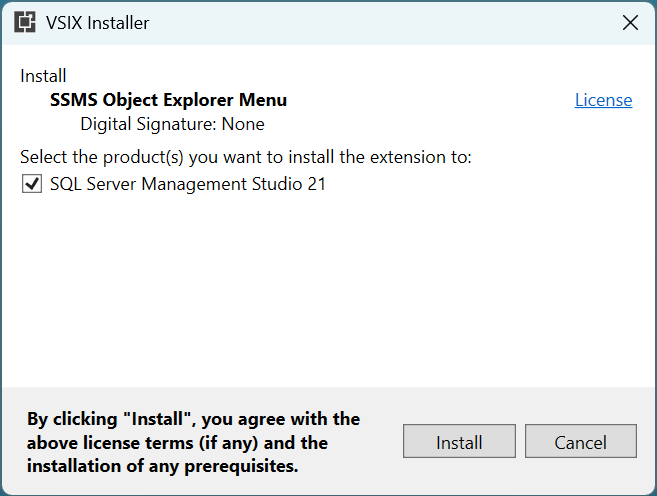
Download the SSMSObjectExplorerMenu.vsix from the latest release.
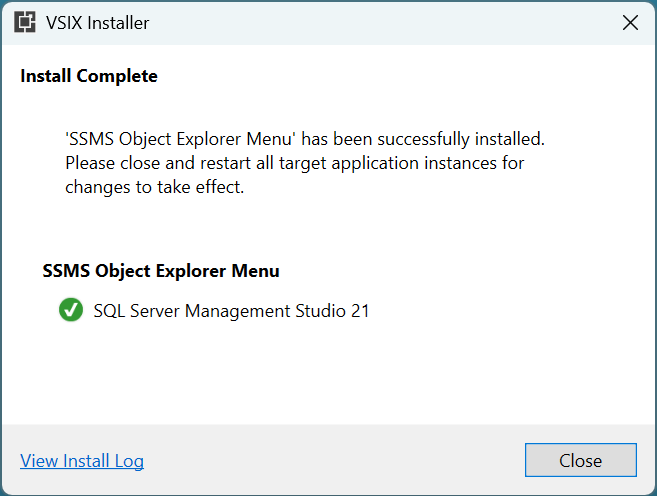
Double click on the SSMSObjectExplorerMenu.vsix to run it and install the Object Explorer Menu extension.
How to add menu items to the Object Explorer
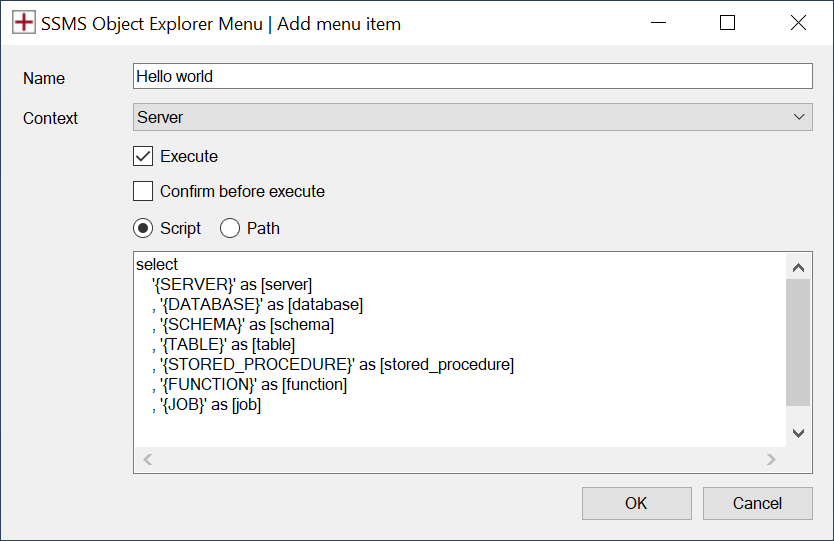
Once the Object Explorer Menu extension is installed, new menu items can be added to the Object Explorer using either of the following two methods:
-
Right-click on the node in the Object Explorer where you would like to add a context menu item and select
Newfrom theMy Scriptsmenu.
-
Open the Options dialog window in SSMS
Tools > Options > SQL Server Object Explorer > SSMS Object Explorer Menuand add new menu items to the collection. Menu items can also be rearranged or removed using the Options dialog.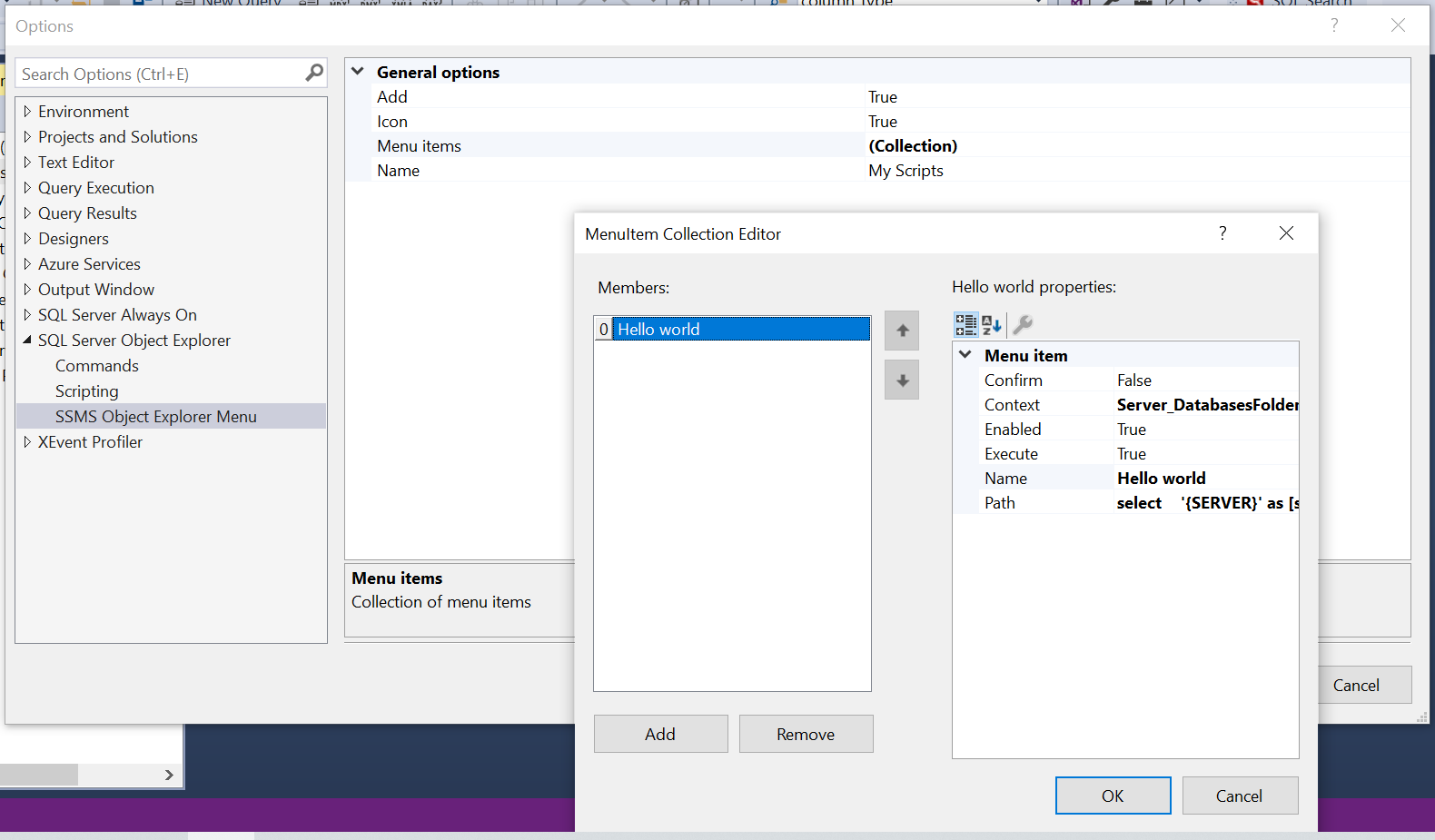
Settings
The following settings are available for each menu item:
- Confirm - Ask confirmation to continue before executing a script file or inline tsql statement
- Context - Tree node level where to display the menu item. For example:
- All
- Server
- Server/DatabasesFolder
- Server/Database
- Server/Database/UserTablesFolder
- Server/Database/Table
- Server/Database/View
- Server/Database/StoredProceduresFolder
- Server/Database/StoredProcedure
- Server/JobServer
- Server/JobServer/JobsFolder
- Server/JobServer/Job
- Enabled - Show/hide the menu item.
- Execute - Automatically run the selected script or tsql statements when the menu item is selected.
- Name - Text displayed on the menu item.
- Script - Inline tsql statements OR path to script file.
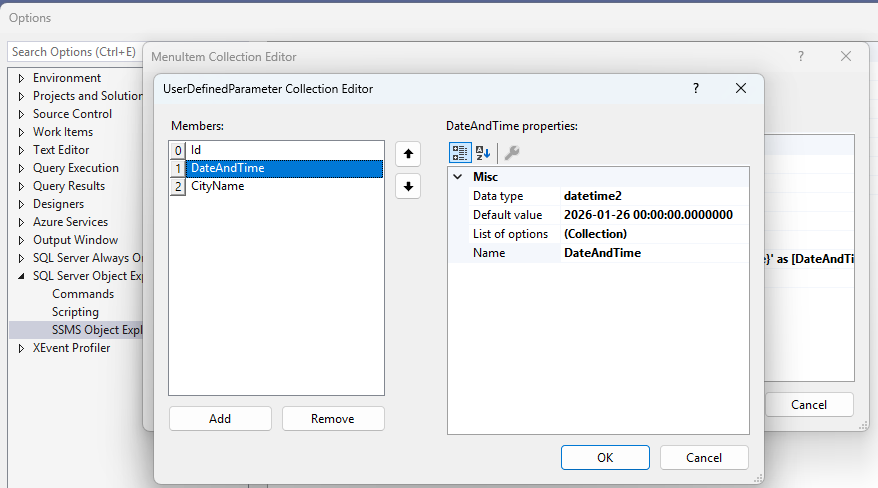
- User-defined parameters - list of custom parameters. They can be interpreted as a custom tag. The main difference is that their substitution values are not taken from the execution context - the user can enter them, before the T-SQL script will be run.
Text substitution
Tags of the execution context
The following tags are replaced in T-SQL scripts and statements before execution:
{SERVER}{DATABASE}{SCHEMA}{TABLE}{VIEW}{STORED_PROCEDURE}{FUNCTION}{JOB}{YYYY-MM-DD}{HH:mm:ss}{YYYY-MM-DD HH:mm:ss}{OBJECT}
User-defined parameters (tags)
Every menu item can have a set of additional parameters if needed. They can be defined at the time when the menu item is added and can be edited later in the Options grid. Each of them must have a unique name and a (data) type.
When adding a parameter, do not wrap its name in curly braces. It will be wrapped automatically when looking for the parameter during text substitution in the T-SQL script.
- Use form without braces when giving a name for a parameter:
MY_CUSTOM_PARAM. - However, wrap the parameter name in braces in the T-SQL script:
{MY_CUSTOM_PARAM}.
The following rules are applied on parameter names:
- A menu item cannot have two parameters having the same name (two names differ only in casing are considered as equal).
- Tag names of the execution context (like
{SERVER},{DATABASE}, etc.) cannot be used as a custom parameter name.
A custom parameter can have one of the below types:
- uniqueidentifier
- int
- nvarchar
- bit
- datetime2
- datetimeoffset
- list of options
The list of options can’t have duplicate elements.
You can provide any string as a datetime2 or datetimeoffset argument which can be parsed to the .NET types DateTime and DateTimeOffset.
These user-defined parameters are substituted the same way like the tags of the execution context.
Example 1
select
    '{SERVER}' as [server]
    , '{DATABASE}' as [database]
    , '{SCHEMA}' as [schema]
    , '{TABLE}' as [table]
    , '{VIEW}' as [view]
    , '{STORED_PROCEDURE}' as [stored_procedure]
    , '{FUNCTION}' as [function]
    , '{JOB}' as [job]
    , '{YYYY-MM-DD}' as [date]
    , '{HH:mm:ss}' as [time]
    , '{YYYY-MM-DD HH:mm:ss}' as [datetime]
    , '{OBJECT}' as [object]
Example 2
select top 10
	*
from {DATABASE}.{SCHEMA}.{TABLE}
Example 3
-- {OBJECT_TYPE} and {NAME_FILTER_EXP} are user-defined (custom) parameters
select * from sys.objects
where type_desc = '{OBJECT_TYPE}' and name like '{NAME_FILTER_EXP}';
Compatibility
SQL Server Management Studio 22.x
This extension has been tested and used with SQL Server Management Studio 22.8.1.
You can download the latest version of SSMS for free from Microsoft.
Compatibility with other extensions are still being tested.
| Extension | Status |
|---|---|
| Redgate SQL Search | Compatible |
| Redgate SQL Prompt | Compatible |
Please let us know what other extensions you use in SSMS. We’ll try our best to ensure compatibility.
SQL Server Management Studio 21.x
SSMS 21.x is no longer supported. The last version compatible with SSMS 21.x is version 3.2.2. Please consider upgrading to the latest version of SQL Server Management Studio.
SQL Server Management Studio 20.x
SSMS 20.x is no longer supported. The last version compatible with SSMS 20.x is version 2.3. Please consider upgrading to the latest version of SQL Server Management Studio.
SQL Server Management Studio 19.x
SSMS 19.x is no longer supported. The last version compatible with SSMS 19.x is version 1.7.2. Please consider upgrading to the latest version of SQL Server Management Studio.
Compiling the source code
Requirements for compiling the source code:
- Visual Studio 2022
- Toolset: Visual Studio extension development
The Visual Studio extension development toolset can be installed via the Tools > Get Tools and Features menu inside Visual Studio.
FAQ
Where can I get the source code for the Object Explorer Menu extension?
You can find the full source code, documentation, and issue tracker on our GitHub repository: https://github.com/brink-daniel/ssms-object-explorer-menu
How can I contribute to the project?
If you encounter any issues, please report them on our GitHub Issues page. We also welcome community contributions. If you’d like to fix a bug or enhance a feature, feel free to submit a pull request. All contributions are reviewed, tested, and considered for inclusion in the project.
Why do you only support the latest version of SSMS?
The Object Explorer Menu extension is currently maintained by a single developer, with all work done voluntarily during personal time. To keep the project sustainable and maintainable, support is limited to the latest version of SQL Server Management Studio (SSMS).
Focusing on a single SSMS version reduces complexity, simplifies maintenance, and ensures a more stable experience for users. Given the productivity benefits this extension offers, our goal is to ensure its longevity—and keeping it simple is key to that goal.
Why was the Object Explorer Menu extension created?
As full-time SQL Server database developers, we spend countless hours in SQL Server Management Studio (SSMS)—often working with the tSQLt unit testing framework. While tSQLt is a powerful tool for database testing, it lacks a free and open-source UI for seamless interaction.
The Object Explorer Menu extension was born from a simple need: the ability to right-click a stored procedure in the Object Explorer and run all related unit tests with a single action. From that initial idea, the extension has evolved to support the execution of any inline T-SQL statement or script file directly from the right-click context menu in Object Explorer.
If you’re new to tSQLt, we recommend starting with their Quick Start Guide. You might also find our article on resolving the common “INSERT EXEC statement cannot be nested” issue helpful.
Why is the Object Explorer Menu extension free and open source?
We’re passionate about SQL Server Management Studio (SSMS)—and especially about SSMS extensions, which enhance productivity and make daily work easier.
We’d love to see more developers building great extensions for SSMS. Feel free to fork our code, experiment, and create something useful. If you build something cool, share it with the community!
Why use the Object Explorer Menu extension when other extensions also allow users to create custom menu items?
SSMS extensions should follow the Unix philosophy: do one thing and do it well. Many extensions become bloated with excessive features, which can lead to performance issues or interfere with the SSMS user experience.
The Object Explorer Menu extension is intentionally lightweight and focused. It adds only context-sensitive menu items to the Object Explorer, with no impact on SSMS startup time or overall UI performance. Each menu item supports tag substitution, enabling scripts to dynamically incorporate context-specific values such as the selected database, table, or stored procedure name.
How do I uninstall the Object Explorer Menu extension?
To uninstall the Object Explorer Menu extension, delete the SSMSObjectExplorerMenu folder located in the Extensions subfolder under %LOCALAPPDATA%\Microsoft\SSMS.
After deleting the folder, restart SQL Server Management Studio to complete the uninstallation.
Credits
All development is done by Daniel Brink and Viktor Mészáros.
Information on how to access the Object Explorer and TreeView control was learnt by studying Nicholas Ross’s SSMS-Schema-Folders project.
Change Log
v4.1.2 (2026-03-31)
- Removed the requirement for elevated rights during installation. The Object Explorer Menu now installs to
%localappdata%\Microsoft\SSMS
v4.1.1 (2026-02-28)
- Define custom parameters for menu items
v4.0 (2025-11-12)
- SSMS 22.0.0 compatibility
v3.2 (2025-07-31)
- Add support for
{OBJECT}tag - Icons to indicate menu item actions for Execute and Confirm
- Version number on New Menu Item window
v3.1 (2025-06-10)
- Added VSIX installer
v3.0 (2025-06-08)
- SSMS 21.1.3 compatibility
v2.3 (2024-12-23)
- Add support for
{YYYY-MM-DD},{HH:mm:ss}and{YYYY-MM-DD HH:mm:ss}tags - Fix bug causing the
{TABLE}tag to be populated with the view name when using the{VIEW}tag
v2.2 (2024-11-12)
- Add support for
{VIEW}tag
v2.1 (2024-03-23)
- Import/export menu items and tsql scripts as xml
v2.0 (2024-03-21)
- SSMS 20.0 compatibility
v1.7 (2023-08-01)
- Usability improvements
- Allow custom menu items on any node in the Object Explorer
- Add support for
{FUNCTION}tag
v1.6 (2023-07-25)
- Create unlimited number of menu items
- Reorder or remove menu items via Tools > Options dialog
- Quickly add menu items via new Add Menu Item dialog
v1.5 (2023-07-23)
- New option to ask confirmation to continue before executing script or tsql statement.
- Removed SQLMedic branding
v1.4 (2023-07-22)
- Usability improvements
v1.3 (2023-07-15)
- Add support for custom menu items on SQL Agent jobs
v1.2 (2023-07-11)
- Allow custom branding
v1.1 (2023-07-07)
- Optimize logic for retrieving tree node context information
v1.0 (2023-07-04)
- Public beta release.